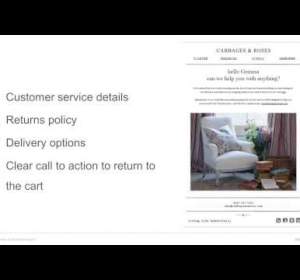


404 Page not found error pages are vital to the workings of the internet as this signify dead ends. But they are also vital to your business, since they tell your customers what is going on and, if made correctly, can help to send them to places you want them to go, rather than just seeing them abandon their visit to you.
So how do you make a 404 page?
If you don’t have access to your webserver then you may have to rely on your ISPs standard 404 Error page. This will contain the bare minimum of what you need to convey – typically “This page cannot be found”.
This is ok, but ideally you want to use the 404 as a way to bounce users elsewhere. So ideally you want access to your server. Then you can create your own custom 404 page that can deliver useful information and can, if you can be bothered to spend the time and money designing it, delight your customers.
What should a custom 404 page contain?
Assuming you can create your own 404 page, then there are key things that you need to make sure it contains. Google recommends that you:
- Tell visitors clearly that the page they’re looking for can’t be found, using language that is friendly and inviting
- Make sure your 404 page uses the same look and feel (including navigation) as the rest of your site
- Consider adding links to your most popular articles, or posts, as well as a link to your site’s home page
- Think about providing a way for users to report a broken link.
- No matter how beautiful and useful your custom 404 page, you probably don’t want it to appear in Google search results. In order to prevent 404 pages from being indexed by Google and other search engines, make sure that your webserver returns an actual 404 HTTP status code when a missing page is requested.
- Use the Enhance 404 widget to embed a search box on your custom 404 page and provide users with useful information to help them find the information they need.
- Use the Change of Address tool to tell Google about your site’s move.
How else to create a 404?
Of course many of you will be using Magento or WordPress to run your sites and both of these offer many ways to create 404 pages.
- Magento and the 404
Magento comes with a number of 404 pages loaded so you just have to tell it which one to use System>Configuration>General>Web>Default Pages > YOU CAN FIND CMS No Route Page which will be default Magento CMS PAGE 404 here.
Alternatively, if you are feeling brave – and creative – you can load your own custom 404 page into Magento. You first have to create your own 404 page in HTML then create a new custom page in the CMS, call it what you want then repeat the above process but point it at this last page.
- WordPress and the 404
Most WordPress themes come with a 404.php page built in. If your theme does then this will automatically be displayed. But if you want it to say something different, you want to customise it or you want to add your own, you can.
To edit your Theme’s 404 error template file, open it in your favorite text editor and edit the message text to say what you want it to say. Then save your changes and upload it to the theme directory of your WordPress install.
To create one or add your own, a good place to start is to find one in one of the free WordPress themes that ships with a 404 page and copy that into your theme then edit it as above. As WordPress itself warn, not all themes are interoperable so there may be some tweaks that need to be made, but this is a good place to start.
- Copy the file /wp-content/themes/twentythirteen/404.php into the directory of your current theme.
- Then, as described in the previous section, edit the error message to present your desired error message.
10 of the best custom 404 pages on the web